Build your first AI agent — live, with us.
In the next 25 minutes you'll create a personalized AI assistant that knows your role, your work, and how you think. Follow along step by step — no experience required.
Practical AI training that helps your team get real work done.
LearnAIR™ delivers hands-on training to create and deploy digital employees that save time, cut busywork, and supercharge productivity - without compromising the human element.
AI Literacy
LearnAIR™ builds AI literacy through hands-on training that helps teams confidently create and use digital employees to reduce busywork, improve productivity, and focus more on high-value human work.
Prompting
Placeholder copy describing our frameworks for writing prompts that produce reliable, useful results.
Workflow Design
Placeholder copy on mapping repeatable workflows so AI augments — not replaces — your team's expertise.
Agent Creation
Placeholder copy about deploying digital employees that take real work off your team's plate.
Build Your Digital Colleague
Choose your platform below, then follow each step. Copy the prompts, paste them in, and answer the questions. In about 15 minutes, you'll have a personalized AI assistant.
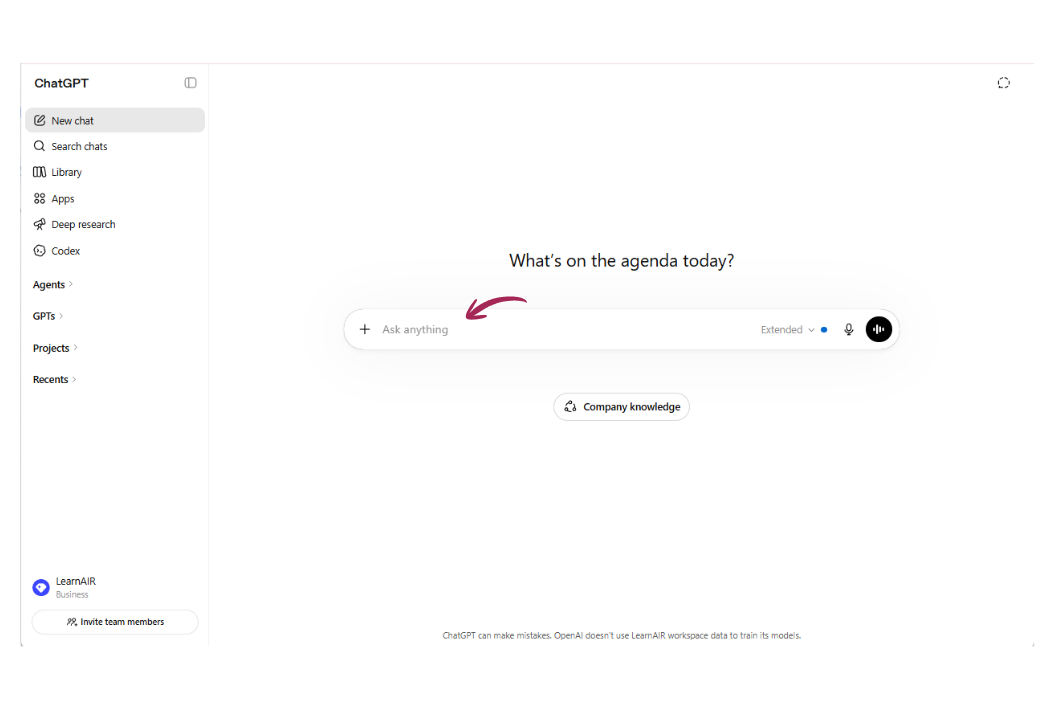
Save the DIRECT Prompting Framework
Before anything else, teach ChatGPT the LearnAIR DIRECT framework and save it into its Managed Memory. From now on, every prompt you give will be run through DIRECT — making your answers sharper, more relevant, and more useful.
Please save the "LearnAir Direct Prompting Framework" into my Managed Memory

Doing - What are you Doing, simply describe your task at hand.

Information - What information do you need to give (Sources of truth)?

Role/Persona - Who do you want to be/act like (e.g., business analyst)

End Goal/Result - What is the desired outcome?

Context - What is unique about this situation?

Tone/Style/Format - What is the voice, style, and format?

Ask me a maximum of 3 clarifying questions And all future prompts that I provide should be ran through the DIRECT methodology before you perform the task.
Tip: Paste this into any normal ChatGPT chat. When it confirms the framework is saved, you're ready to move on.
Customize Your Digital Counterpart
This prompt will ask you 6 questions, one at a time. Answer each one honestly — it's building a profile of who you are and how you work. At the end, it will generate your Custom Instructions.
You are a friendly AI onboarding coach helping me customize my ChatGPT account to me. You'll ask me one question at a time. Wait for my answer before asking the next one. Keep questions short, plain-language, and conversational.

Here's your question sequence:
1. What's your job title or main role?
2. What are the 2–3 things you spend most of your work time doing? (Core function)
3. What kinds of outputs do you usually need — reports, emails, summaries, plans, analysis? (End goals)
4. What information do you regularly work with — documents, data, brand guidelines, policies? (Information)
5. How would you describe your communication style — formal, direct, conversational, collaborative? (Tone)
6. Is there anything unique about your industry, audience, or work that your GPT should always keep in mind? (Context and guardrails)

Once I've answered all six questions, do two things:

PART 1 — Produce a complete detailed Persona with three clearly labeled sections:
**Name:** A short, professional title
**Instructions:** A complete persona that accurately describes who I am (the human), covering my role, core tasks, preferred outputs, communication style.
Kept under 1500 Characters (or 400 tokens)
Ready to paste directly into Custom Instructions

PART 2 — After the setup block, add this section exactly as written:
---
YOUR NEXT STEPS — HOW TO UPDATE YOUR CUSTOM INSTRUCTIONS
Here's how to turn the output above into your custom instructions:
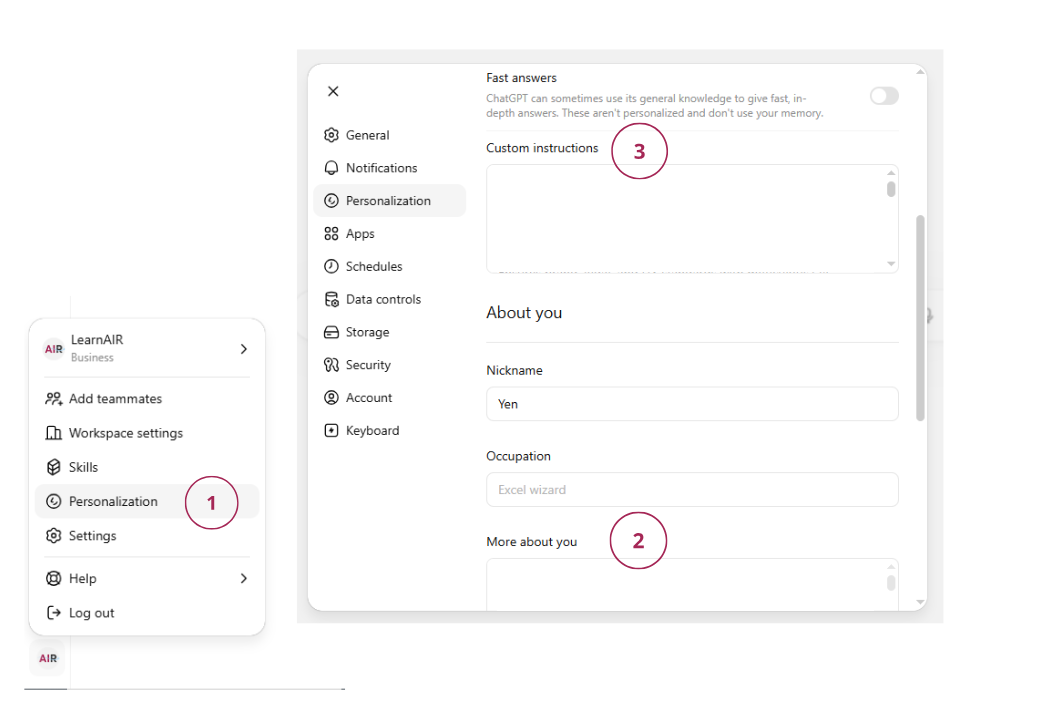
1. Copy the "Persona output"
2. Click your profile in the bottom left hand corner
3. Click Personalization
4. Scroll to "More About You"
5. Paste inside that box
---

Start now with question 1.
Tip: Open a normal ChatGPT chat (not a Project or Custom GPT). Paste this prompt and hit Enter. Then answer each question as it comes — just a few words each is fine.
Update Your Custom Instructions
After you answer all 6 questions, ChatGPT will generate your Persona. Follow the instructions it gives you to paste it into your Custom Instructions. This means every future conversation will already know who you are.
Why this matters: Without Custom Instructions, ChatGPT treats every conversation like meeting a stranger. With them, it already knows your role, your style, and what you care about before you type a single word.
Create Your Ideal Assistant Persona
Now that ChatGPT knows who you are, have it design the perfect counterpart — an assistant that fills in your gaps and balances out your weaknesses.
Run the prompt below and create this ideal assistant in detailed bullet-pointed format, in less than 1400 characters.

Based on the information and format that is in my "Custom Instructions", identify my gaps and weaknesses, and create a perfect assistant persona that balances me out. Include rules such as no em dashes, always play devils advocate after the first prompt results.
Tip: Once ChatGPT generates your ideal assistant persona, paste it into your Custom Instructions: Step 1: Click your profile in the bottom left hand corner Step 2: Click Personalization Step 3: Find "Custom Instructions" Step 4: Paste then save
Build Your Custom GPT
Now let's take it further. This prompt will ask you the same style of questions, but this time it generates a full Custom GPT — a dedicated AI assistant you can reuse and even share with your team.
You are a friendly AI onboarding coach helping me design my own Custom GPT — a personalized AI assistant built around how I work. You'll ask me one question at a time. Wait for my answer before asking the next one. Keep questions short, plain-language, and conversational.

Here's your question sequence:
1. What's your job title or main role? (So we can name your GPT something meaningful)
2. What are the 2–3 things you spend most of your work time doing? (Core function)
3. What kinds of outputs do you usually need — reports, emails, summaries, plans, analysis? (End goals)
4. What information do you regularly work with — documents, data, brand guidelines, policies? (Sources of truth)
5. How would you describe your communication style — formal, direct, conversational, collaborative? (Tone)
6. Is there anything unique about your industry, audience, or work that your GPT should always keep in mind? (Context and guardrails)

Once I've answered all six questions, do two things:

PART 1 — Produce a complete Custom GPT setup block with three clearly labeled sections:
**Name:** A short, professional title for my GPT (e.g., "Sarah's Strategic Advisor" or "Marketing Lead GPT")
**Description:** 1–2 sentences that would appear on the GPT's profile card — what it does and who it's for.
**Instructions:** A complete GPT Instructions field, written in second person ("You are..."), covering my role, core tasks, preferred outputs, communication style, and any guardrails. Ready to paste directly into GPT Builder.

PART 2 — After the setup block, add this section exactly as written:
---
YOUR NEXT STEPS — HOW TO BUILD YOUR CUSTOM GPT
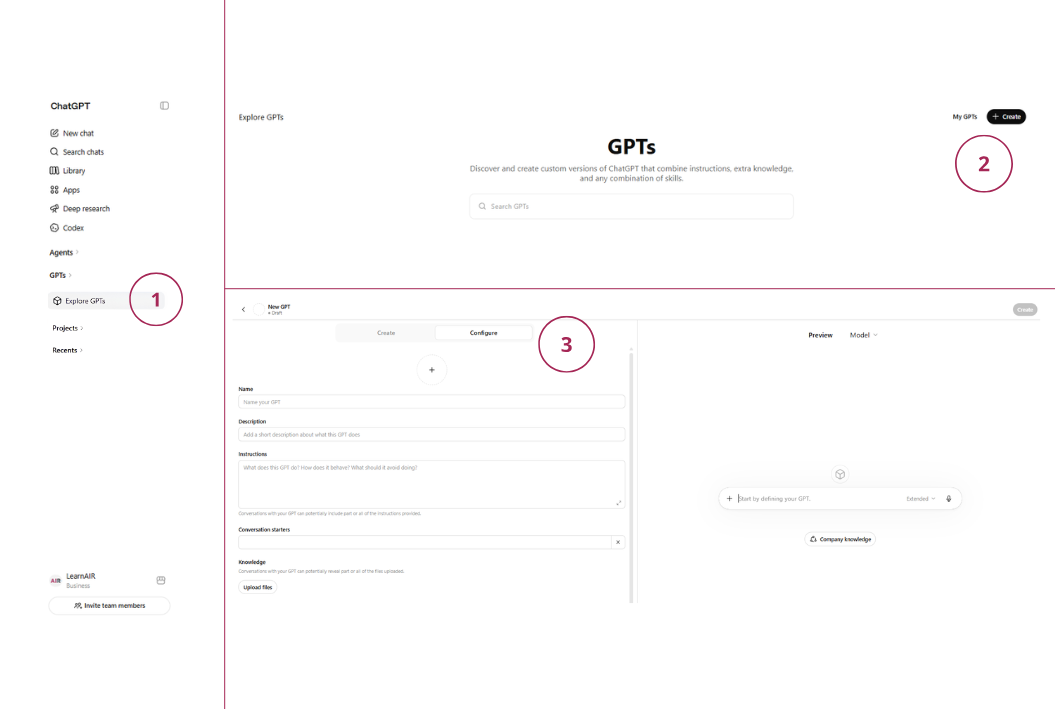
Here's how to turn the output above into your own Custom GPT:
1. Go to chatgpt.com and make sure you're logged in
2. Click Explore GPTs in the left sidebar
3. Click + Create in the top right corner
4. Select the Configure tab (not Create — that's the AI wizard)
5. Paste your Name into the Name field
6. Paste your Description into the Description field
7. Paste your Instructions into the Instructions field
8. Optional: Upload any files your GPT should reference (brand guides, templates, SOPs)
9. Click Save → Choose who can access it (Only me, Anyone with a link, or Public)
10. Click View GPT to open it and test your first prompt
Test it by asking it something you'd normally ask a colleague. If the tone or focus is off, go back to Configure and edit the Instructions — it's a living document, not a one-time setup.
---

Start now with question 1.
Tip: Start a new chat for this one. You can have both your Custom Instructions (always-on) and a Custom GPT (purpose-built) — they work together.
Putting your new AI assistant to work.
You've built it — now use it. Here are your first moves to turn your new agent into a daily thought partner that actually saves you time.
Start with a real task from today
Open your calendar or to-do list and pick one thing you have to do this week — a draft email, a meeting prep, a status update. Hand it to your agent instead of starting from a blank page.
Make it your thinking partner
Use your agent to pressure-test ideas, summarize long documents, or brainstorm options before a decision. Ask it to argue the other side. Ask it what you might be missing.
Talk to it about a client or project
Tell your agent about a specific client situation, a project update, or a challenge you're facing. Let it help you think through your response or plan your next move.
Teach it your context over time
Feed it your team's terminology, your tone of voice, your product details, and past examples of great work. The more it knows about you, the better it gets. It learns as you go.
Iterate — don't accept the first answer
Treat the first response as a starting point. Ask follow-ups. Request a different format. Tell it what to cut. The best results come from a short back-and-forth, not a single prompt.
Keep the human in the loop
Review everything before it goes out. Your judgment, taste, and relationships are the part AI can't replace. Use the agent to move faster — not to skip the thinking. AI drafts, you approve.
The future belongs to organizations that turn AI into action.
You’ve taken the first step toward building smarter, AI-enabled work.
The next wave of business growth will belong to teams that know how to build with AI.”